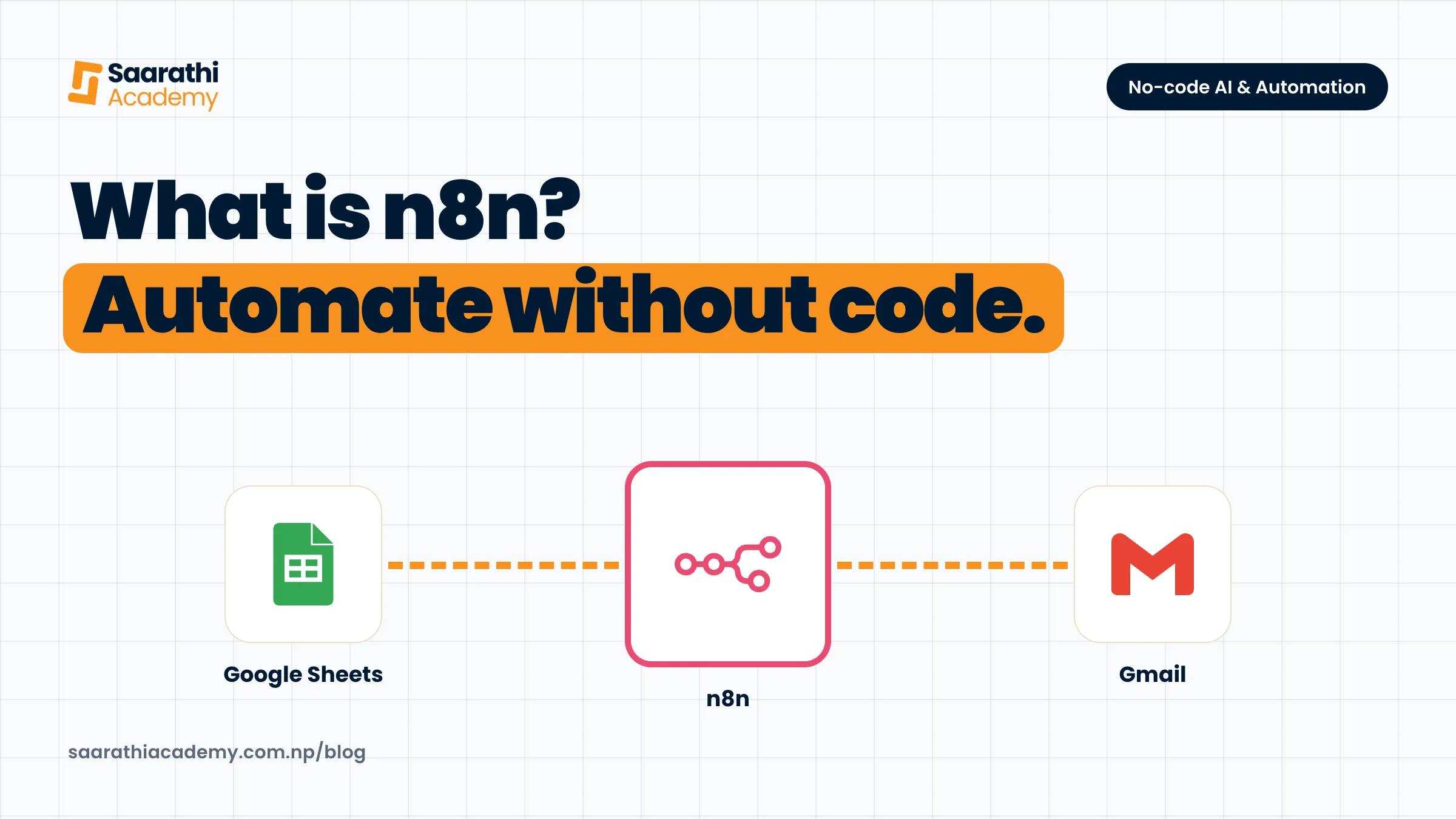
n8n (said "n-eight-n") is a tool that connects the apps you already use and gets them to do jobs for you, step by step, without anyone clicking. You lay the job out as a chain of boxes on screen: when a form is filled, add a row to a sheet, then send an email. That chain is called a workflow. Switch it on and it runs by itself every time. Most of these need no code at all, which is why office staff, shop owners and freelancers use it to stop copying the same details from one place to another every day.
The three words you need: workflow, trigger and node
A workflow is one whole job, start to finish. "Every new enquiry goes into the sheet and the owner gets an email" is one workflow.
The trigger is what starts it. Usually that is an event, like a new form entry or a new email landing in Gmail, but it can also be a clock: "every morning at 9".
A node is one box in the chain, and it does one thing. It might read an email, add a row to Google Sheets, send a message or ask an AI model to summarise some text. You drag nodes onto the screen, join them with lines and fill in a few settings in each. n8n ships ready-made nodes for a lot of common apps. For almost anything else with an API (a door that lets one program talk to another), there is a general "HTTP request" node.
Is n8n free? Cloud and self-hosted explained
That depends on which of the two ways you run it.
With n8n Cloud, n8n runs it for you on their servers, and you pay once the trial ends. When we checked the n8n pricing page in October 2026 there were four plans, Starter, Pro, Business and Enterprise, all priced in euros. Starter was 20 euros a month, billed annually, for 2,500 workflow runs. You can try Starter and Pro without a credit card. They count usage in "executions", and one execution is one full run of a workflow no matter how many steps it has.
Self-hosted means you install n8n on your own computer or on a server you rent. According to the n8n hosting docs, without a licence key it runs as the free Community edition. You do pay in another way, because looking after it is now your job. You install it (usually with Docker, a tool that packages software so it runs the same everywhere), update it, back it up and keep it online. If your laptop is asleep, so are your workflows.
If you are just learning, start on the Cloud trial. If you want it free for the long run, budget for a small rented server and someone who is comfortable looking after one.
Five automations a small business in Nepal could build
We have kept these at a high level so you can see the shape of each job before you open the tool.
1. Website enquiry to a Google Sheet and an email
- Trigger: someone fills in the enquiry form on your website, or a Google Form.
- Their name, phone number and question go into a new row in a Google Sheet.
- Whoever handles enquiries gets an email with those details in it.
Now enquiries stop getting lost in somebody's inbox, and you follow up from one list.
2. A daily sales or work report
- Trigger: a fixed time every evening.
- Read today's rows from your sales sheet or order list.
- Add up the totals and count the orders.
- Send the owner a short summary by email or message.
3. Sorting incoming emails with an AI step
- Trigger: a new email lands in a shared Gmail inbox.
- The email text goes to an AI model with a clear instruction to label it as enquiry, complaint, invoice or other.
- n8n applies the matching Gmail label, or forwards the email to the right person.
- If the AI isn't sure, the email gets a "check by hand" label instead.
The AI does the sorting and nothing else. Reading and replying is still a person's job.
4. Payment or booking reminders
- Trigger: every morning.
- Look in a sheet for tomorrow's bookings or payments due this week.
- Draft a reminder for each one.
- A staff member approves the list, and only then do the reminders go out.
Don't skip that approval step. Sending a customer the wrong reminder is embarrassing.
5. Planning social media posts from a sheet
- Write your upcoming posts, their dates and image links in a Google Sheet.
- Trigger: a set time each day.
- Find the post marked for today and send it to the platform, or to whoever does the posting.
- Mark that row done.
Some social platforms make posting through their API a pain to set up. For a lot of small businesses, the version that actually works is a daily reminder with the post text ready to paste, not fully automatic posting.
n8n, Zapier or Make: which one?
They do the same basic job, and what you learn in one carries over to the others. For a beginner, the real differences are how each one counts your usage and how much control it gives you.
Zapier is the easiest place to start. Its free plan gives you 100 tasks a month and only two-step workflows (one trigger, one action), and every successful action step counts as a task. Make draws your workflow as a visual map, and its free plan has 1,000 credits a month, with most module actions using one credit each. n8n counts a whole workflow run as one execution, can be self-hosted for free, and lets you go further once a job gets complicated. On day one it does feel a bit more technical than Zapier.
Limits and risks to know before you automate
- Customer data passes through other companies. Once you connect Gmail, Sheets or an AI tool, your data goes through those services. Keep passwords, citizenship numbers and payment details out of any AI step, and read what each service does with your data.
- Workflows break without telling you. An app renames a field, a login expires or someone moves a sheet column, and the workflow just stops. Set up an error alert to your email, and look over your runs once a week.
- AI steps are not free. When n8n calls a model like ChatGPT or Claude, it usually goes through the provider's API, and that is billed by usage, separate from your chat subscription. Check the provider's pricing page and set a spending limit. Test on a few items before you run hundreds.
- The AI will get things wrong sometimes, mislabelling an email or inventing a detail. Anything that sends, posts or pays should get a human check first.
How to start in your first week
- Day 1: sign up for the n8n Cloud trial and open one of the ready-made templates to see how the nodes join up.
- Day 2: on paper, write down one boring task you repeat every week and list its steps in order.
- Day 3: build the simplest version, a form or schedule trigger plus one Google Sheets node.
- Day 4: add an email step. Then break it on purpose with a wrong sheet name and look at how n8n shows the error.
- Day 5: add one AI step with a short, clear instruction and try it on ten real examples.
- Weekend: show it to whoever actually does that task and ask them what is missing.
You will learn more from one small thing a real person uses than from ten tutorials. We have a longer post on that: how to build real projects without YouTube tutorials. And if you want to know how AI is opening this kind of work up to people who don't code, read what vibe coding is.
How Saarathi's course compares
We wrote our No-Code Generative AI, AI Agents and Automation course for the same person this post is for, so you don't need any coding, maths or tech background. It runs for 5 weeks, Monday to Friday, with 2 hours of live class a day in Old Baneshwor or online. There are never more than 10 students in the room, plus up to 5 online seats. The two hands-on automation weeks use Zapier, Make.com and n8n. In Week 4 you build jobs like the ones above for a Nepali small business: an enquiry desk, booking and payment reminders, and a weekly sales summary, each with a person reviewing it. We teach safety as a habit, from what you should never paste into public AI tools to putting a human approval step on anything that sends, posts or pays.
It won't make you a software engineer, and it doesn't go deep into running your own n8n server. Think of it as a fluency course that leaves you with a small freelance portfolio. We don't guarantee jobs or placements. The full week by week plan is on the course page, and you can compare it with our other programmes on all courses.